
- Install llama.cpp, X64 Cuda 12 in my case (4070 Super 12GB)(https://github.com/ggml-org/llama.cpp/releases) NOTE: there are two download links, don’t forget the DLLs or you’ll run in CPU mode!
- Download a GGUF model file off hugging face that will fit in your GPU VRAM (IMO iterative performance > slow thinking windows) https://huggingface.co/Qwen/Qwen2.5-Coder-14B-Instruct-GGUF/resolve/main/qwen2.5-coder-14b-instruct-q4_k_m.gguf?download=true
- Run the server. Example with params: allocate to GPU, context window, cpu threads, flash-attn, localhost, port, chat template for the selected model and alias to use with your IDE/client/agent:
.\llama-server.exe -m models\Qwen2.5-Coder-14B-Instruct-Q4_K_M.gguf -ngl 99 -c 16384 --flash-attn on -t 8 --host 127.0.0.1 --port 8888 --chat-template chatml --alias johnnyfive - Verify it works with
curl http://127.0.0.1:8888/v1/modelsand note the alias should match your param which you’ll need to call from your IDE of choice! IDE specific notes below.
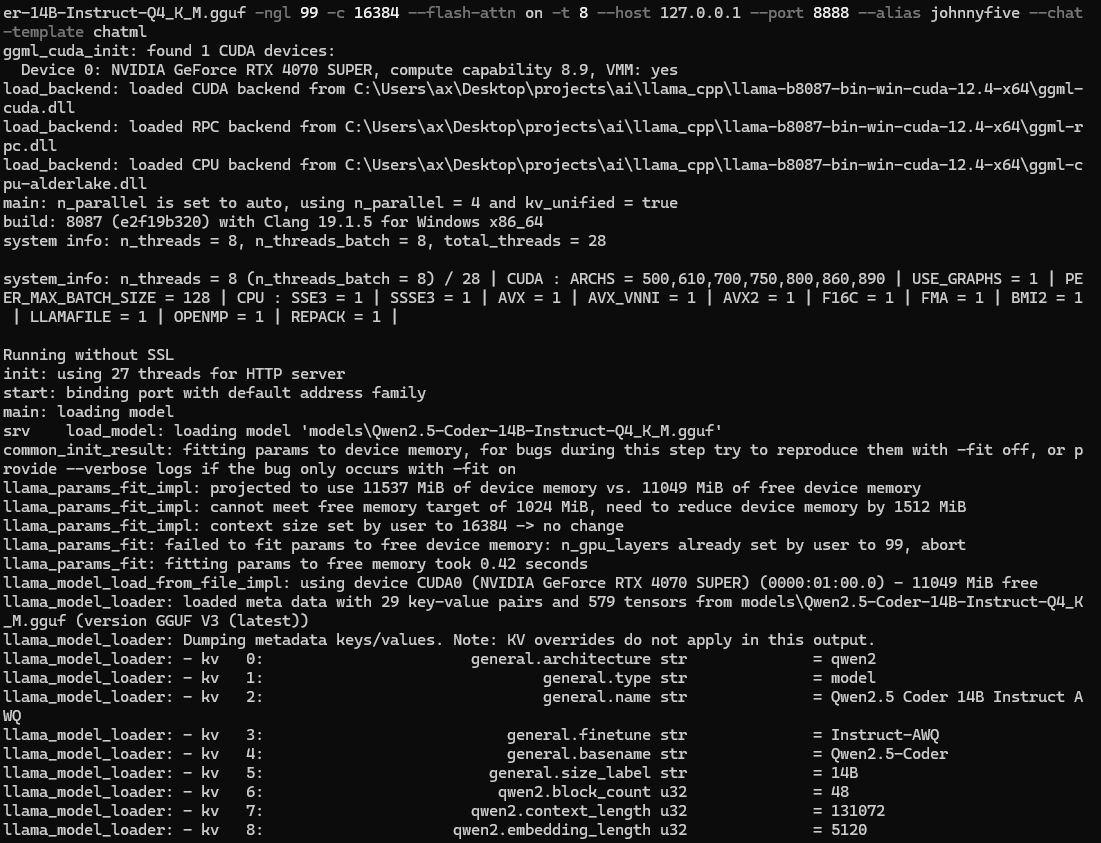
There is also a llama.cpp chat cli if you wanted to communicate directly which is useful for general testing, benchmarking and making sure your hardware is detected properly.
Now let’s talk dev tools!
Claude Code CLI
Fastest setup/least steps and the best average token/S performance out of the box for the models I’ve tested without tweaking (comparable to direct llama.cpp chat cli within 1% margin). I think there are arguments to be made that each of these tools I outline below have different use cases. Claude Code CLI is the most well rounded in terms of the venn diagram of all capabilities, but it can be very context and planning heavy which you can run into issues with on smaller low memory, low context local models. As our hardware improves over time though, there is a chance this becomes less of an issue.
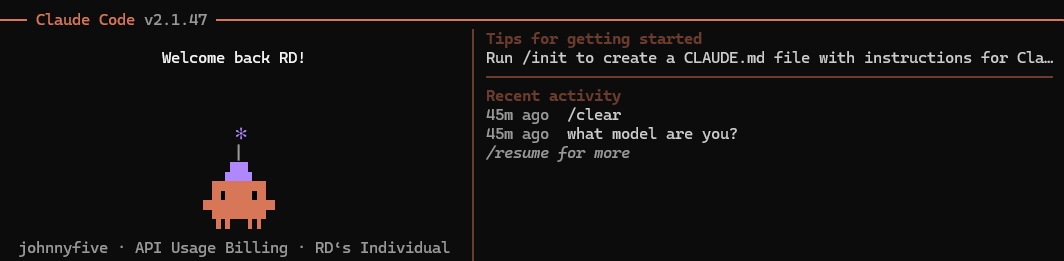
If you don’t already have Claude Code installed, run the one liner install command from Claude for your platform (Windows powershell: irm https://claude.ai/install.ps1 | iex ) then cd into your project directory and launch Claude with the params for your local LLM: $env:ANTHROPIC_BASE_URL="http://localhost:8888"; claude --model johnnyfive
If it’s your first time logging in you’ll have to choose your account type/initial setup.
That’s it!
Cursor
At the time of writing this, the non-team version of Cursor did not have support for local LLMs without more complex LiteLLM proxy tweaking and then disabling when you want to use OpenAI servers. Premium versions allow different “Provider” and/or overriding the OpenAI base URL.
I’m not sure why Cursor made it difficult to use a LocalLLM, but there may be security or other reasons, hard to say. In either case their development proceeds rapidly and perhaps this will change in the future, maybe by the time you read this!
If not Cursor but you prefer a visual IDE over CLI then never fear, Continue is here. (and many other options)
Continue (VS Code)
The plugin “Continue” in VS Code is a simple drop-in chat interface for connecting to remote or local LLMs. Older versions had a JSON config and at the time of writing you can go into the plugin settings and update a simple YAML config with the values for your local server:
name: Local Config
version: 1.0.0
schema: v1
models:
  - name: johnnyfive
    provider: openai
    model: johnnyfive
    apiBase: http://127.0.0.1:8888/v1
    apiKey: local
    systemMessage: You are a helpful coding assistant. Always respond in English.
    temperature: 0.2
    roles:
      - chat
      - edit
      - autocomplete
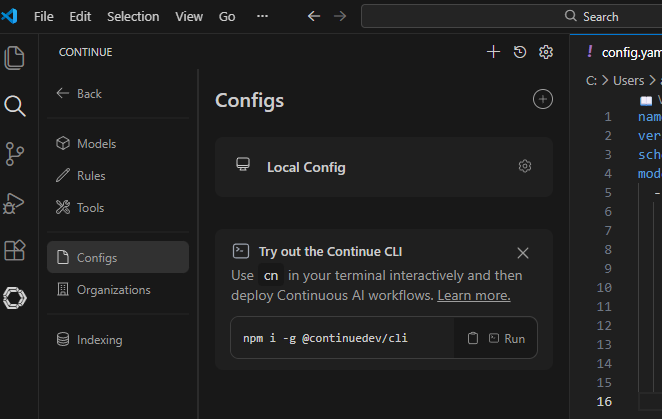
Continue is only a few button click setup and if you’re just getting started or only need the basic capabilities it gets the job done. Clearing chat and context is a few clicks and very useful with a small low memory model.
Aider
This tool is a CLI based pair programmer and is also a quick single step to connect to local LLM with a basic but surprisingly powerful surgical editing flow. This tool uses differential comparisons for edits which can reduce your average context usage and while this requires more of your attention, this works well with a small low memory model.
I followed this guide on their website to setup on Windows along with LiteLLM proxy: https://aider.chat/docs/llms/openai-compat.html and installed with a simple one liner in powershell: powershell -ExecutionPolicy ByPass -c "irm https://aider.chat/install.ps1 | iex"
- After running the install one liner, open a terminal/powershell and cd to the directory of your project
- Launch aider with this one liner (again Windows powershell; see the aider docs for mac/nix):
$env:OPENAI_API_KEY="local"; $env:OPENAI_BASE_URL="http://127.0.0.1:8888/v1"; C:\Users\johnny.local\bin\aider.exe --model openai/johnnyfive
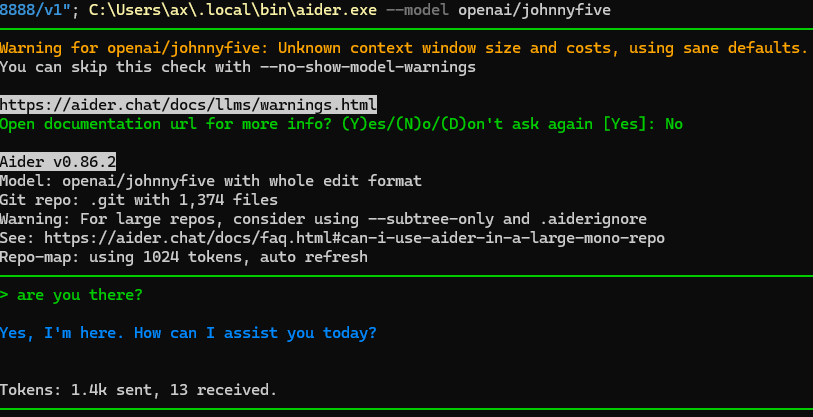
If you want the environment variables to persist you can also set them with setx and restart the terminal/powershell. Add the local bin path to your Windows PATH if you don’t want to use the full path to aider.exe each time.
For me Aider also required some more tweaking to get the same performance as Claude Code and Continue in VS Code but it is a unique tool that can stand on its’ own with the big kids. YMMV.
With that, I’ll leave you to it! Stay tuned for a more thorough comparison of these tools in the future.
Happy pair programming!
Additional References/Credits:
- https://unsloth.ai/ for some great reference documents when I was setting these up!

 {handshake sound}
Leave a comment